- 如何创建托盘 Tray 菜单
1. links
- https://www.electronjs.org/zh/docs/latest/api/tray
- Electron,查看系统托盘 Tray 模块的相关内容。
- https://www.electronjs.org/zh/docs/latest/api/native-image
- Electron,nativeImage 模块可以用于处理 Tray 的图标问题。
2. 核心模块概述
- 本节 demo 涉及到的几个核心模块:
- Tray(创建托盘)
- Menu(托盘菜单项的创建)
- nativeImage(处理 Tray 图标的问题)
3. 托盘图标
- 托盘的图标可以是任意尺寸的图片,不需要劳烦美工大大或者自己去找工具调节图片尺寸,可以使用本地的 nativeImage 模块来自定义尺寸。
4. demo
// index.js
const { app, BrowserWindow, Menu, Tray, nativeImage } = require('electron')

let win
function createWindow() {
  win = new BrowserWindow()
  win.loadFile('./index.html')
}

let tray
function createTrayMenu() {
  let trayIcon = nativeImage.createFromPath('./1.png')
  trayIcon = trayIcon.resize({ width: 22, height: 22 })
  // 处理 Tray 图标

  tray = new Tray(trayIcon)
  // 创建托盘实例,将准备好的图标作为参数传入。

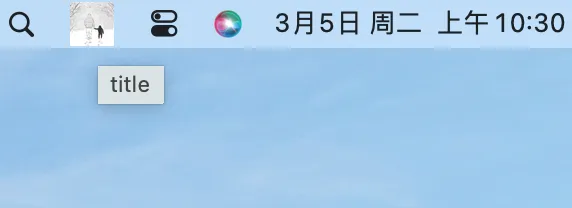
  tray.setToolTip('title')
  // 测试提示文案

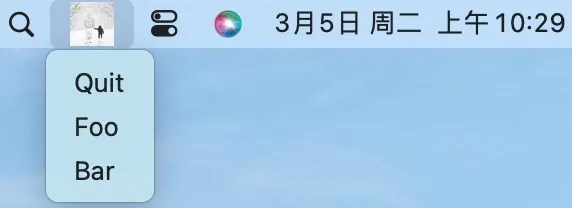
  const trayMenu = Menu.buildFromTemplate([
    {
      label: 'Quit',
      click() {
        app.quit()
      },
    },
    { label: 'Foo' },
    { label: 'Bar' },
  ])
  // 准备 Tray 菜单

  tray.setContextMenu(trayMenu)
  // 将准备好的 Tray 菜单添加到 Tray 实例身上。
}

app.whenReady().then(() => {
  createWindow()
  createTrayMenu()
})nativeImage.createFromPath('./1.png')将 png 图片转为 Tray 可用的图标。trayIcon = trayIcon.resize({ width: 22, height: 22 })重置图标的尺寸,防止图片过大或过小,导致显示效果异常。tray = new Tray(trayIcon)创建 Tray 实例,传入 tray 图标。tray.setToolTip('title')将鼠标悬停在图标上,会显示的文本,通常是应用标题。tray.setContextMenu(trayMenu)设置 Tray 菜单。
最终效果
- 将鼠标悬停在图标上,会显示的文本,通常是应用标题。这是通过
tray.setToolTip('title')来设置的。 - 单击鼠标左键,会弹出托盘菜单。这是通过
tray.setContextMenu(trayMenu)来设置的。
5. 问:Tray 是 macOS 特有的吗?
- 答:Tray 菜单并非 macos 特有的,在 windows 上也有这玩意儿。
Discussions
正在载入评论…